> ## Documentation Index
> Fetch the complete documentation index at: https://docs.komaa.com/llms.txt
> Use this file to discover all available pages before exploring further.
# Upload to Teams and go live
> Upload the app package as a custom app or publish it to your organization, register your agent in StandIn, and place the first call.
Part 3 of the [Teams setup](/teams/overview). You have the [app package](/teams/app-package) -
now put it in front of Teams users. Pick the route that matches how widely the bot should be
available.
## Choose an upload route
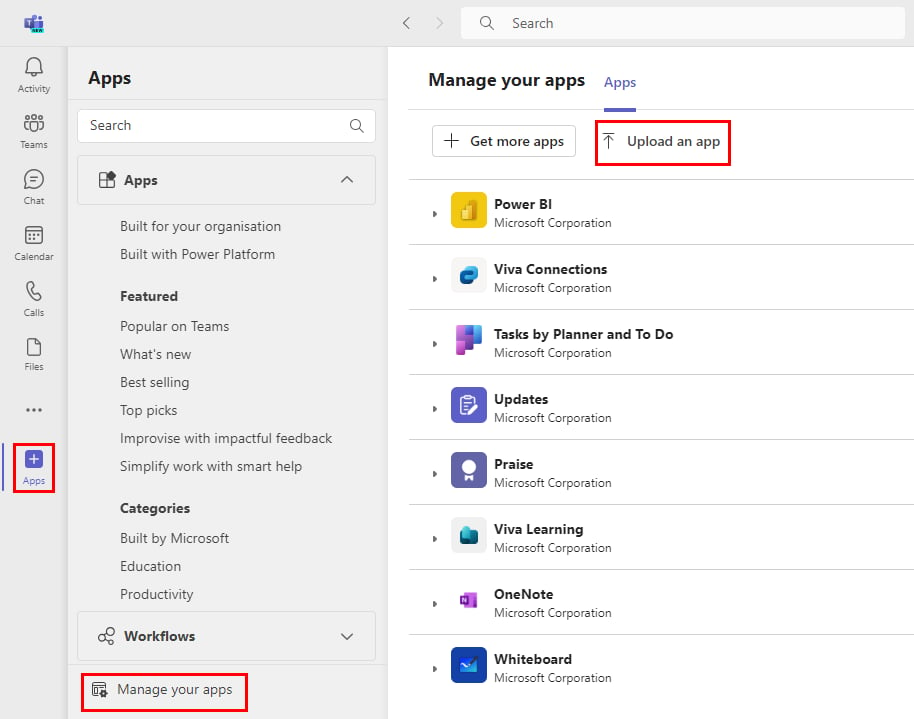
Best for testing and personal use. In Teams, go to **Apps → Manage your apps → Upload an app**:
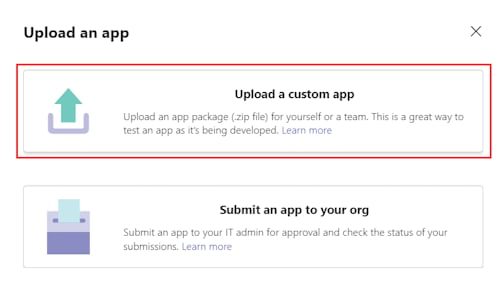
 Choose **Upload a custom app** and select the zip. The bot is then available to **you**; open
it and call.
Choose **Upload a custom app** and select the zip. The bot is then available to **you**; open
it and call.
 This requires **custom app upload** to be allowed for your account - if the button is missing,
ask your Teams admin (policy reference:
[Manage custom app policies and settings](https://learn.microsoft.com/en-us/microsoftteams/teams-custom-app-policies-and-settings)).
Official walkthrough: [Upload your app in Teams](https://learn.microsoft.com/en-us/microsoftteams/platform/concepts/deploy-and-publish/apps-upload).
Best when you want validation and versioning. Go to
[dev.teams.microsoft.com](https://dev.teams.microsoft.com/) → **Apps → Import app** and upload
the zip (or **New app** and paste the manifest fields in the GUI). The portal validates the
manifest, hosts the icons, and can then **Preview in Teams**, **Download** the finished
package, or **Publish → Publish to your org**.
Official reference: [Teams Developer Portal](https://learn.microsoft.com/en-us/microsoftteams/platform/concepts/build-and-test/teams-developer-portal).
Best for making the bot callable by **everyone in your tenant**. Either publish from the
Developer Portal (**Publish → Publish to your org**) or have an admin upload the zip directly
in the **Teams admin center** (**Teams apps → Manage apps → Upload new app**). A Teams admin
approves the pending app before it appears for users.
Official reference: [Publish a custom app to your organization](https://learn.microsoft.com/en-us/microsoftteams/upload-custom-apps).
## Register your agent in StandIn
In your StandIn dashboard, register your **Agent voice URL** and the matching HMAC `sharedSecret`
(done automatically if you used [pairing](/quickstart#connect-your-agent-by-pairing-recommended)).
If you also want Teams chat, set the optional **Agent chat URL**
(`https:///api/messages`; leave it empty if you only use voice).
## Place the first call
Search for the app in Teams (or open it under **Apps → Built for your org** after an org publish),
then **call the bot**. StandIn answers, connects to your bridge, and your agent speaks.
**First chat message ignored?** Using **OpenClaw**, its chat channel drops direct messages from
senders you have not approved (`dmPolicy: pairing`, the default) - approve yourself with
`openclaw pairing approve msteams
This requires **custom app upload** to be allowed for your account - if the button is missing,
ask your Teams admin (policy reference:
[Manage custom app policies and settings](https://learn.microsoft.com/en-us/microsoftteams/teams-custom-app-policies-and-settings)).
Official walkthrough: [Upload your app in Teams](https://learn.microsoft.com/en-us/microsoftteams/platform/concepts/deploy-and-publish/apps-upload).
Best when you want validation and versioning. Go to
[dev.teams.microsoft.com](https://dev.teams.microsoft.com/) → **Apps → Import app** and upload
the zip (or **New app** and paste the manifest fields in the GUI). The portal validates the
manifest, hosts the icons, and can then **Preview in Teams**, **Download** the finished
package, or **Publish → Publish to your org**.
Official reference: [Teams Developer Portal](https://learn.microsoft.com/en-us/microsoftteams/platform/concepts/build-and-test/teams-developer-portal).
Best for making the bot callable by **everyone in your tenant**. Either publish from the
Developer Portal (**Publish → Publish to your org**) or have an admin upload the zip directly
in the **Teams admin center** (**Teams apps → Manage apps → Upload new app**). A Teams admin
approves the pending app before it appears for users.
Official reference: [Publish a custom app to your organization](https://learn.microsoft.com/en-us/microsoftteams/upload-custom-apps).
## Register your agent in StandIn
In your StandIn dashboard, register your **Agent voice URL** and the matching HMAC `sharedSecret`
(done automatically if you used [pairing](/quickstart#connect-your-agent-by-pairing-recommended)).
If you also want Teams chat, set the optional **Agent chat URL**
(`https:///api/messages`; leave it empty if you only use voice).
## Place the first call
Search for the app in Teams (or open it under **Apps → Built for your org** after an org publish),
then **call the bot**. StandIn answers, connects to your bridge, and your agent speaks.
**First chat message ignored?** Using **OpenClaw**, its chat channel drops direct messages from
senders you have not approved (`dmPolicy: pairing`, the default) - approve yourself with
`openclaw pairing approve msteams `. Using **Hermes**, an unknown sender gets a
**pairing-code reply** instead of an answer - approve it with `hermes pairing approve teams `
(with `TEAMS_ALLOWED_USERS` set, unlisted senders are dropped silently instead). Details:
[the bot ignores Teams chat](/troubleshooting#the-bot-answers-calls-but-ignores-teams-chat-dm-pairing).
## If something does not work
* Bot never joins the call → check the **calling webhook** on the
[Teams channel](/teams/azure-bot#6-enable-calling-and-set-the-webhook) and that
[Graph permissions](/teams/azure-bot#8-grant-graph-permissions) are admin-consented.
* Bot joins but stays silent → usually a `sharedSecret` mismatch or an unreachable Agent voice URL;
see [Troubleshooting](/troubleshooting).
* Upload rejected → re-check the [package layout](/teams/app-package#packaging-it-manually) (files
at the zip root) and bump the manifest `version` on republish.